

Download IBM SPSS Amos for Windows, complete the installation, then use the License Authorization Wizard to activate your software.
Download v32
Step 1: Download IBM SPSS Amos
Choose the version you need: v30, v31, or v32. The screenshots in this guide use Amos 31, but the installation flow is similar across these versions.
Download Amos v30These are Windows installers. Keep the installed version matched to the authorization information supplied for your purchase.
Step 2: Run the Installer
Open the downloaded .exe file and follow the InstallShield Wizard. Review the license information and continue with Next.
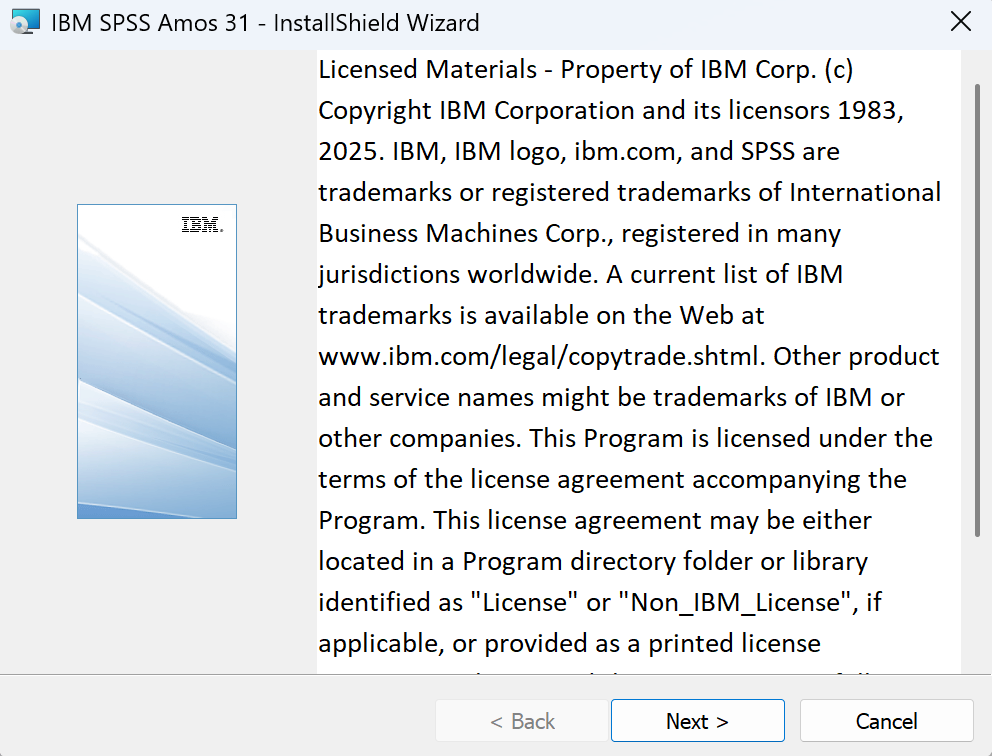
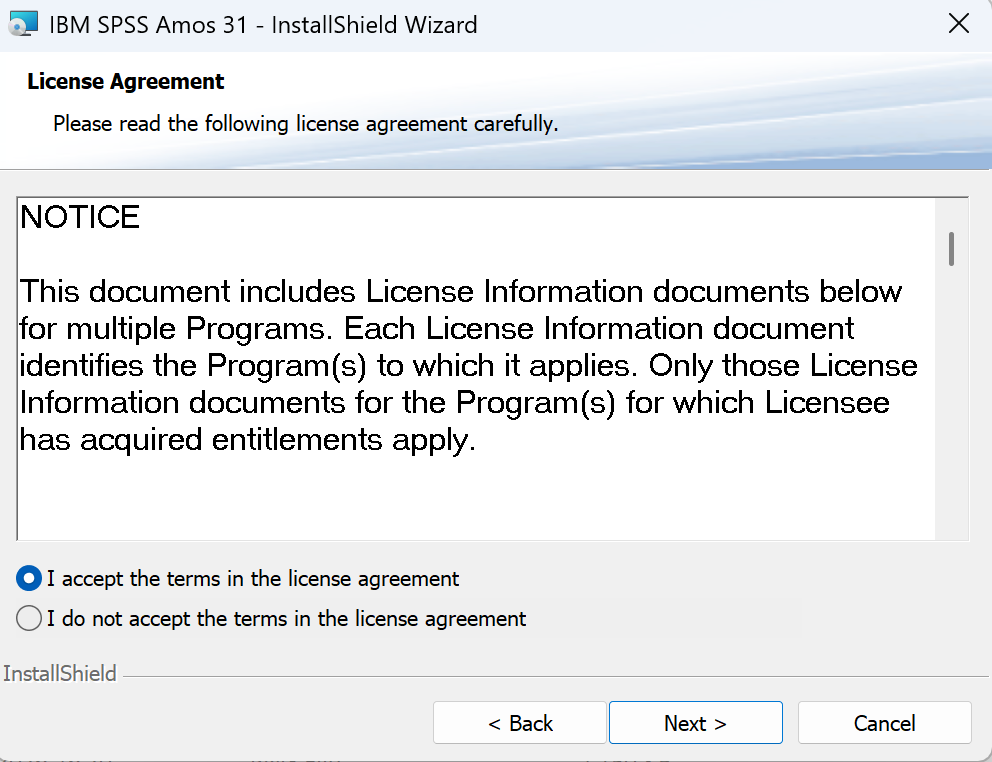
On the license agreement page, select I accept the terms in the license agreement, then click Next.
Step 3: Finish the Installation
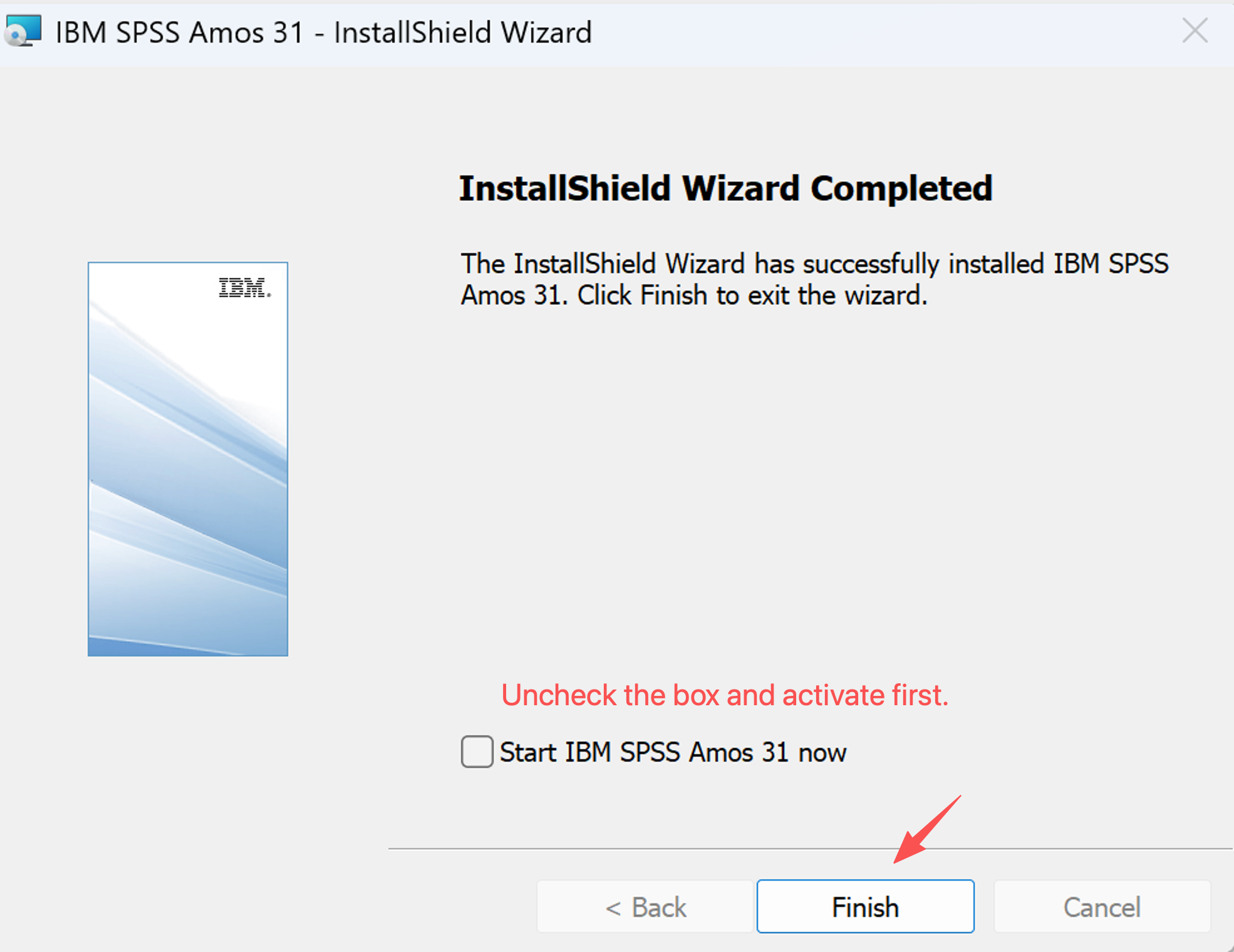
Wait for the installation to complete. When the completion screen appears, clear Start IBM SPSS Amos 31 now before clicking Finish. This lets you open the authorization wizard first.
Step 4: Open the License Authorization Wizard
Important: Open the Windows Start menu and search for IBM SPSS Amos. Open the IBM SPSS Amos folder or search results, then find and launch IBM SPSS Amos 31 License Authorization Wizard.
If you installed v30 or v32, choose the corresponding version-named License Authorization Wizard shown for your installed version.
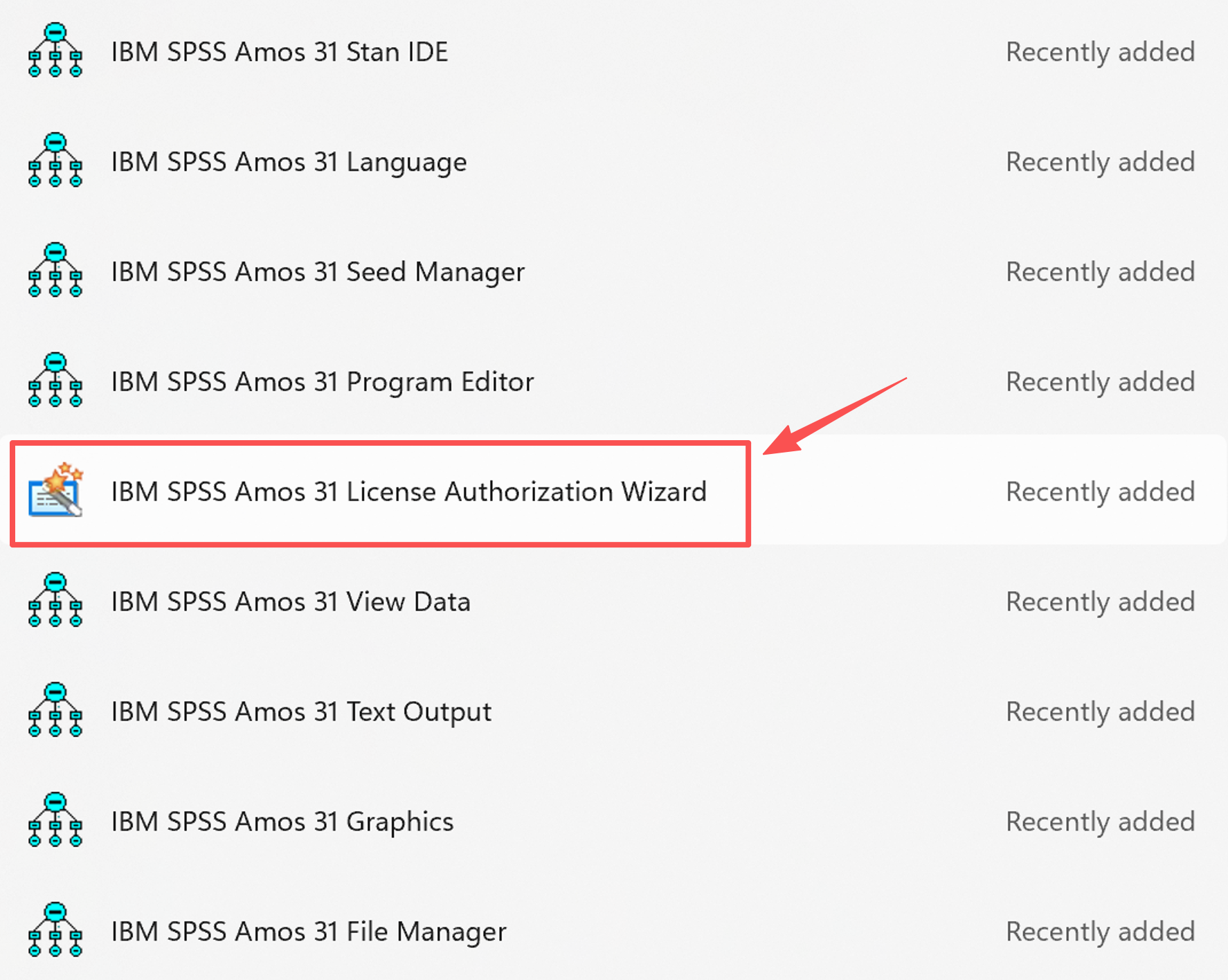
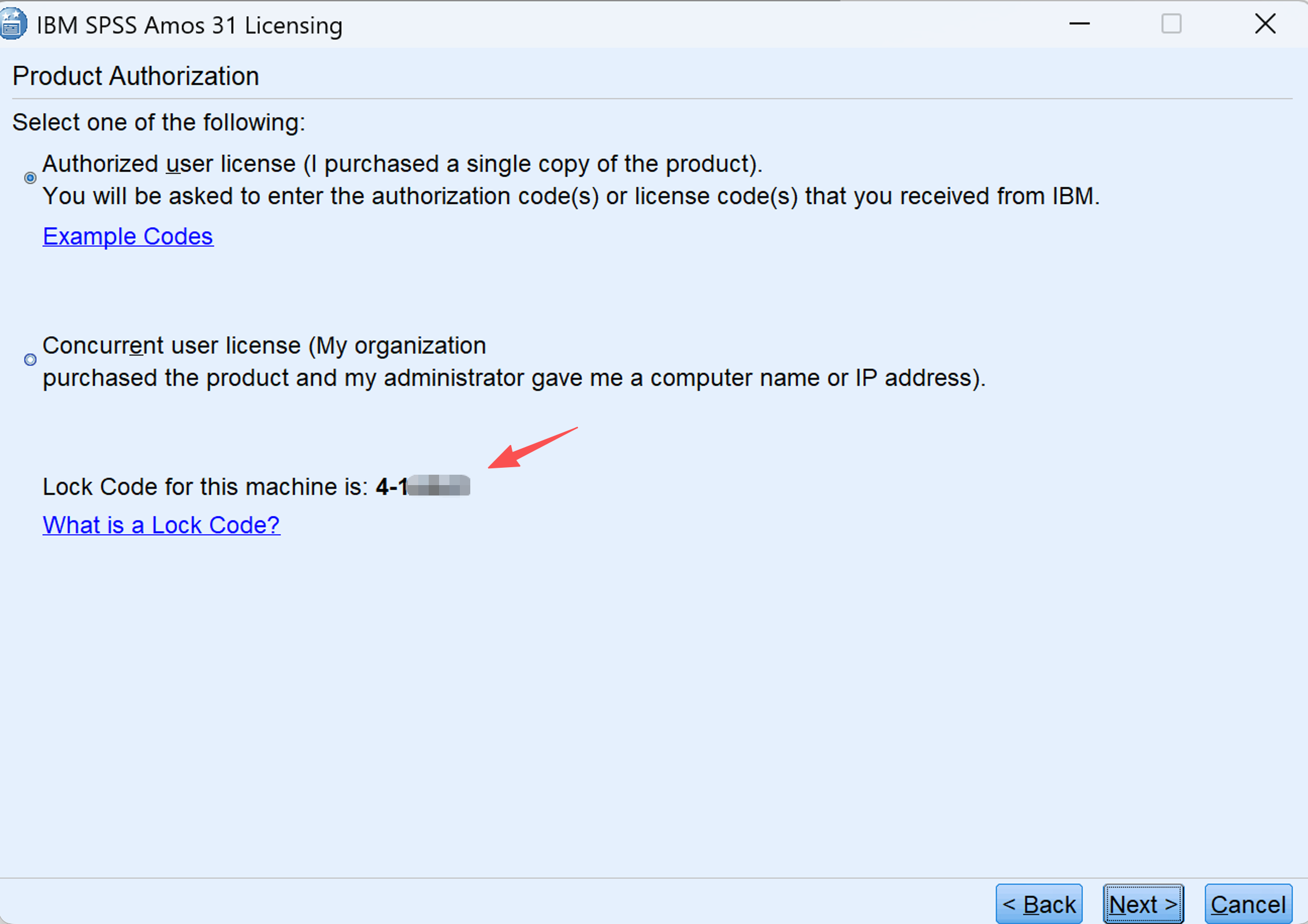
Step 5: Authorize IBM SPSS Amos
In the IBM SPSS Amos Licensing window, select Authorized user license. Enter the authorization code or license code supplied with your purchase, then continue with Next and complete the on-screen instructions.
After authorization is completed, open IBM SPSS Amos from the Start menu to confirm that it launches normally. If the wizard reports an error, send a screenshot of the message to support before making repeated changes.
Check the installed version and authorization message before requesting support through your seller.