

Step 1: Cancel the Auto-Activation
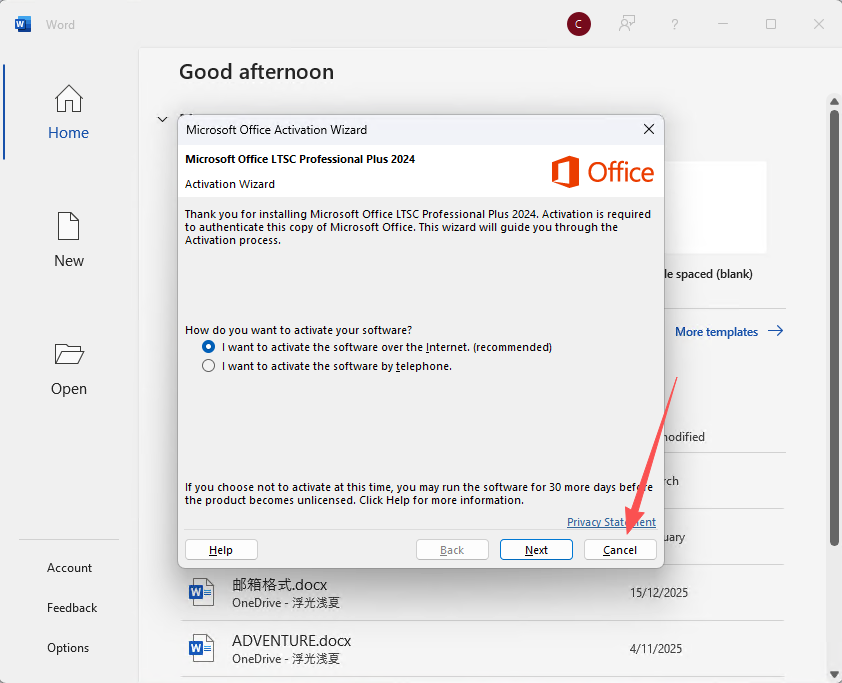
If the Microsoft Office Activation Wizard appears automatically when you open Word, click Cancel to close it first.
Step 2: Go to the Account Page
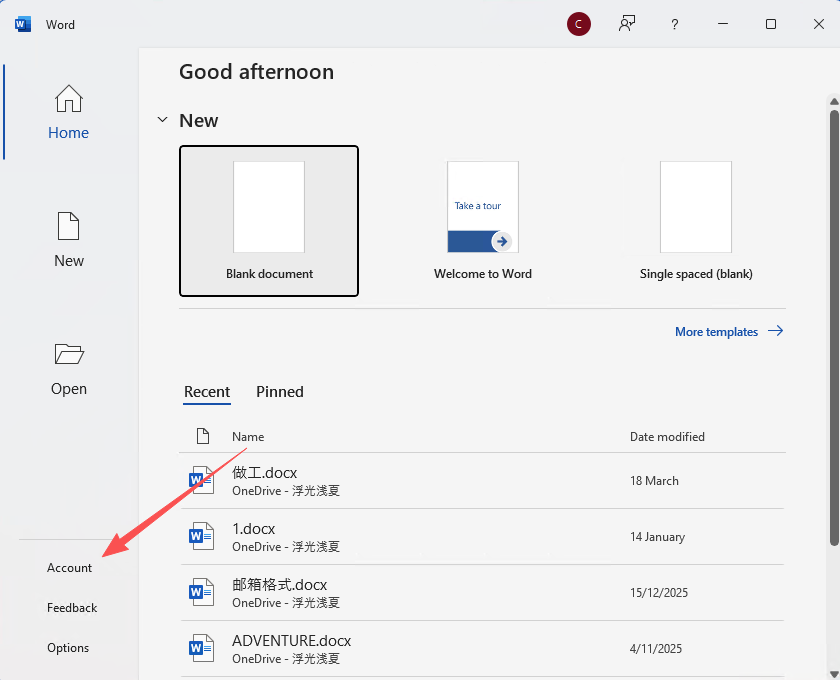
Open a Blank document, then click on Account in the bottom left menu.
Step 3: Change Product Key
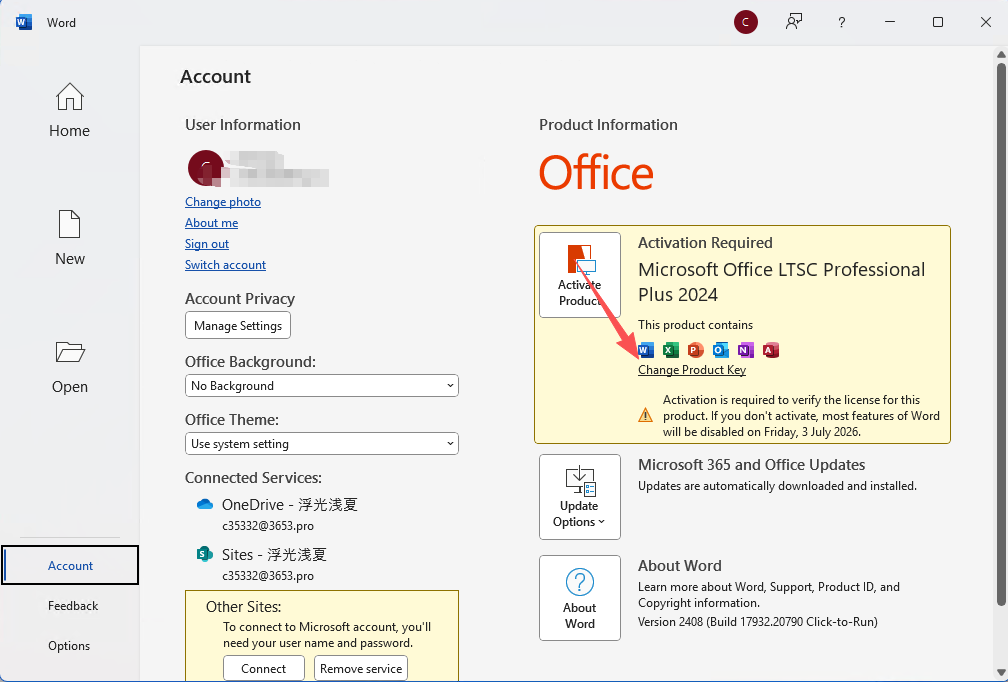
Under the Product Information section, click on the Change Product Key link.
Step 4: Enter Your New Key
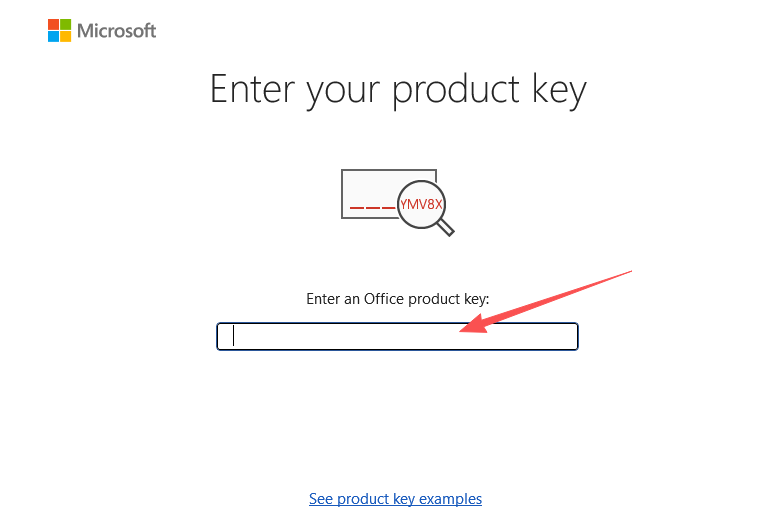
Enter your new Office product key into the text box provided.
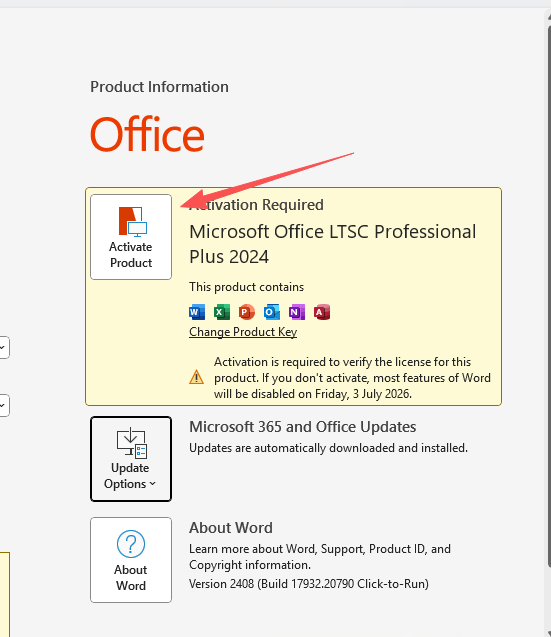
Step 5: Click Activate Product
Once the key is updated, you will be redirected back to the Account page. Click on the Activate Product button.
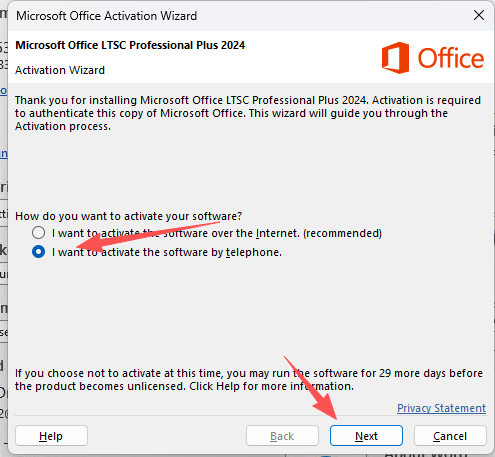
Step 6: Select Telephone Activation
The Activation Wizard will pop up again. Select the option “I want to activate the software by telephone.” and click Next.
Step 7: Send Installation ID to Support
You will now see the Telephone Activation screen. Locate your Installation ID under Step 2.
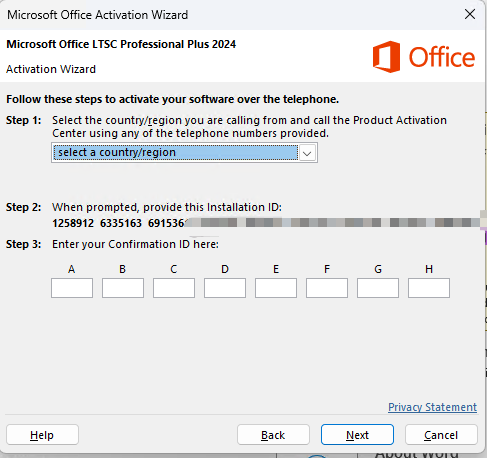
Please take a clear photo or screenshot of this entire window and send it to our customer support. We will verify the ID and reply with your Confirmation ID (Step 3) to complete the activation process.