

Step 1: Download Microsoft 365 Official Installer
Click the button below to download the official image installer:
Download Microsoft 365 Official Image
Security Tip:
Please make sure you download from official or trusted sources only.
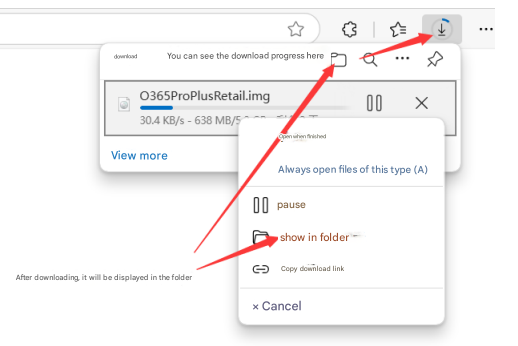
Wait for the download to complete,
then click Show in folder.
Step 2: Extract Installation Files
If the system does not automatically mount the file:
- Install 7-Zip
- Right-click the downloaded file
- Select Mount or Extract to current folder
Tip:
Mount is recommended if available.
Step 3: Install Microsoft 365
Run Installer
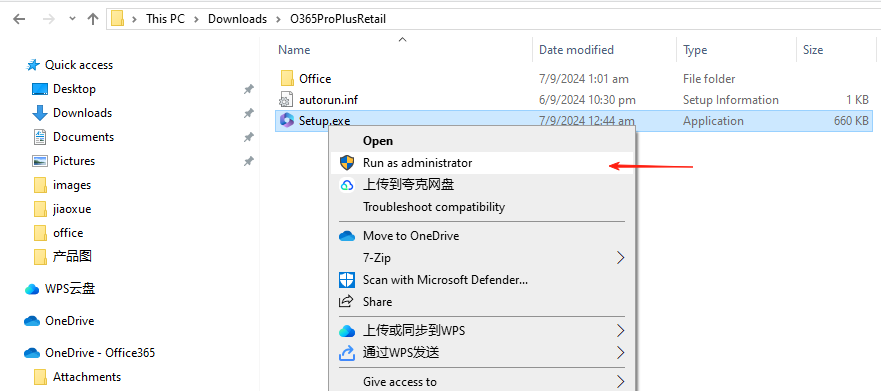
Open the extracted folder,
Run the installer as administrator.
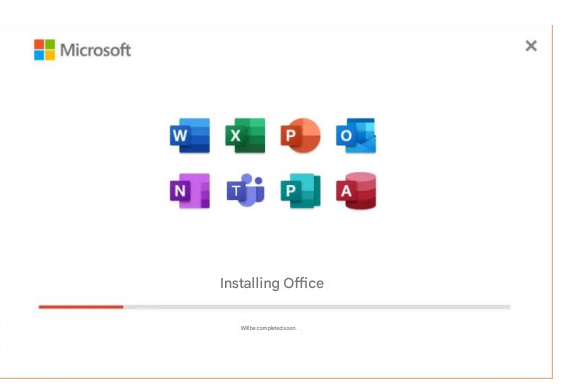
Note:
Installation may take 15–30 minutes.
Please keep internet connected.
Installation Completed
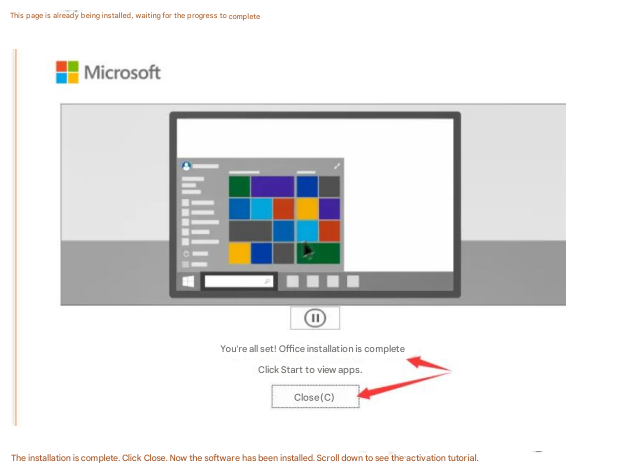
Click Close to finish installation.
Step 4: Activate Microsoft 365
Sign In
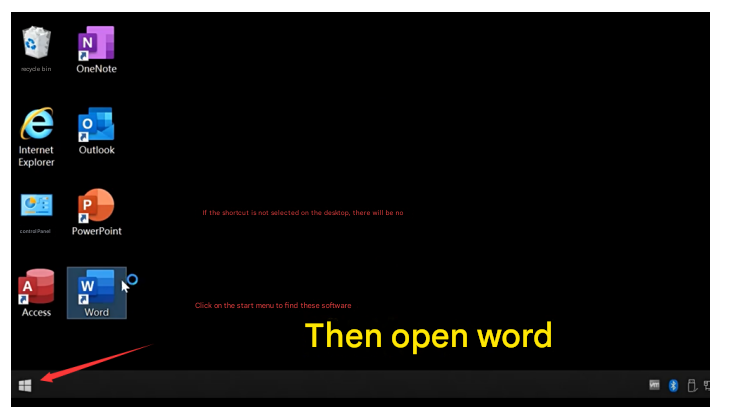
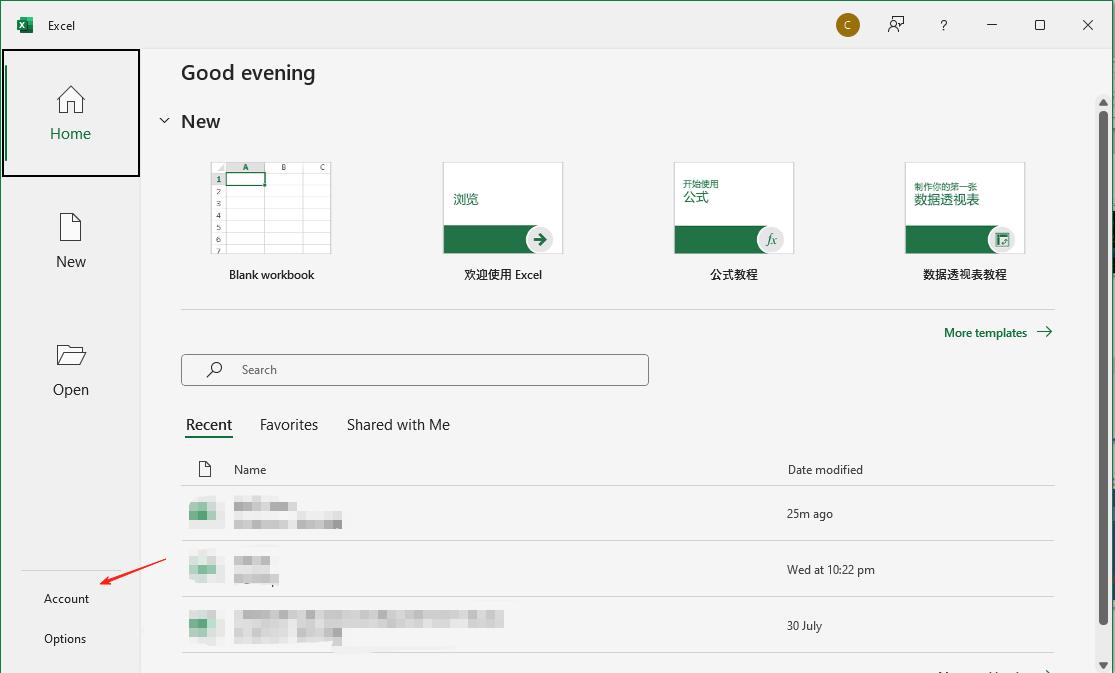
- Open Word or Excel
- Click Sign in
- Enter provided account
- Paste the provided password
Change Password (First Login)
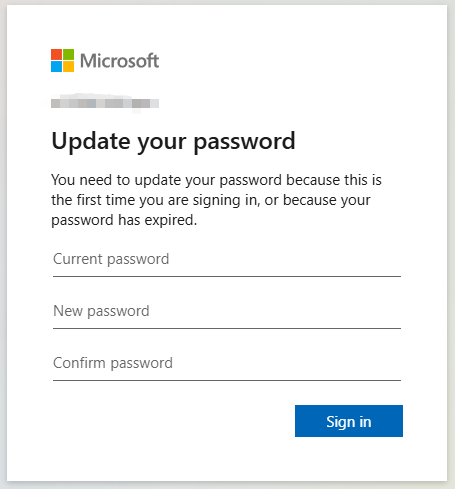
Password Requirements:
• At least 8 characters
• Uppercase + lowercase letters
• Numbers included
• Must not be the same as old password
Activation Completed
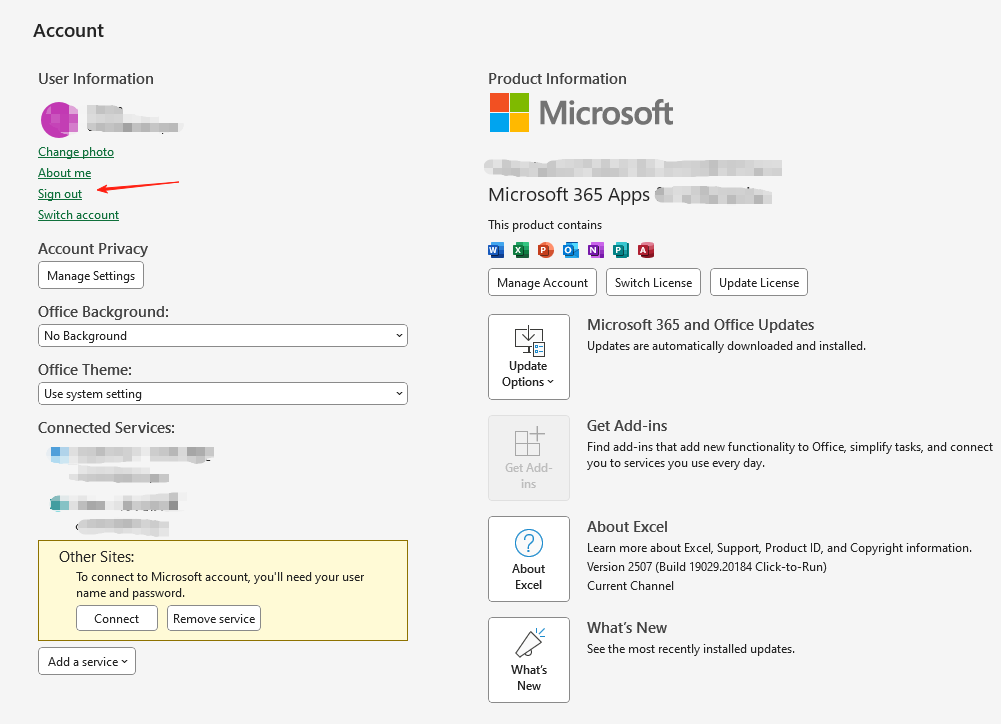
- Go to File → Account
- Product name: Microsoft 365
- Status: Activated